

Version 2.35N is now available for VESTA control panels. This update improves video integration within installations, expands remote configuration options for the QallMax touchscreen and keypads, enables more granular user permissions, and introduces new tools for distributors and installers.
VESTA Advanced
IP cameras as additional system zones
IP cameras can now be configured like any other system zone: zone attributes can be assigned and their responses to full arming, part arming and disarming defined.
Previously, image and event capture only worked with the instant burglar attribute. From this version onwards, it works with any attribute; for example, a camera can be configured as an entry delay zone.
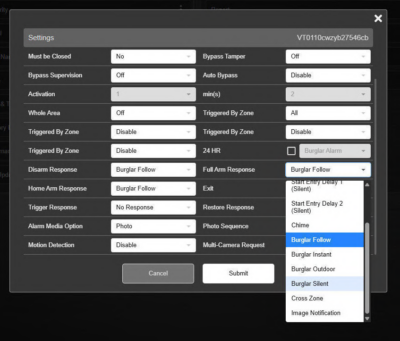
IP camera zone settings, including image capture and arming responses
Instant snapshot upon person detection
VESTA Advanced cameras send a snapshot with zero delay as soon as an IVS event is detected. The image is linked to the event, so it can be viewed alongside the alarm without searching through recordings.
In addition, images from all IP cameras are saved with a common filename prefix, making them easier to identify and organise.
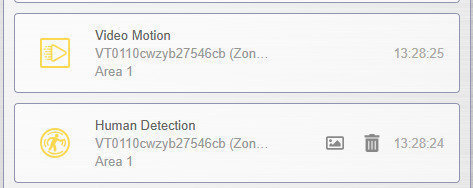
Snapshot from a VESTA Advanced camera with human motion detection
Enable or disable motion detection alarms
You can enable or disable the camera’s motion detection using a switch without changing any of its other settings.
Two-way audio and Pan/Tilt control
On compatible IP cameras, users can speak through the camera speaker and adjust its orientation directly from the SmartHomeSec app, without needing another video application.
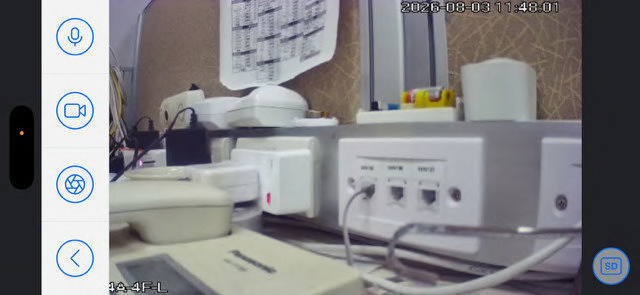
Two-way audio and Pan/Tilt control for an IP camera in the app
Adding VESTA HOME solar cameras via Bluetooth
VESTA HOME solar cameras are now added via Bluetooth. The app guides users step by step through camera onboarding and configuration.
MASTER accounts with multiple cameras
Master accounts with many cameras across multiple installations can play video from several IP cameras simultaneously. This improvement also fixes the video authentication issue affecting master accounts with more than 100 cameras.
In addition, the app’s automatic recorder discovery now recognises NVR510 and NVR520 models, making them easier to add to an installation.
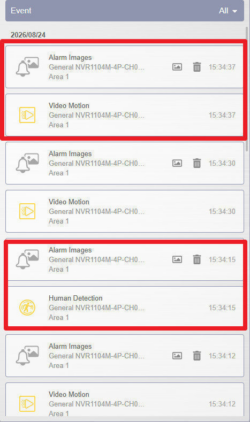
IP camera video in the app for a large account
QallMax touchscreen
The QallMax touchscreen now offers additional remote configuration options. Settings that previously required physical access to the device can now be managed from the web portal, particularly useful when maintaining multiple installations:
Wi-Fi network scanning
Wireless settings include a button for scanning available Wi-Fi access points. Detected networks are listed by signal strength, making it easy to select the most suitable one. This feature is available in both device and installer settings.
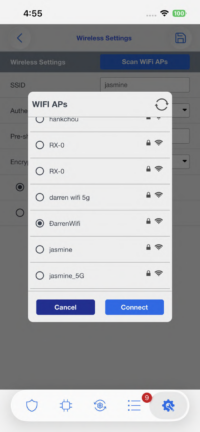
Touchscreen wireless settings with the Wi-Fi network scan button
Volume, screen timeout and voice prompts
The web portal lets users adjust touchscreen volume (0 to 15), screen timeout and voice prompts remotely, without visiting the installation.
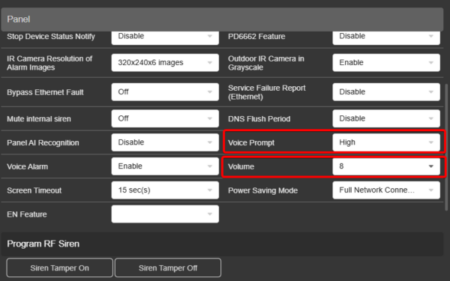
Panel configuration in the web portal: volume, screen timeout and voice prompts
ROM version
The installed ROM version is displayed in device and installer settings and in firmware version management. During an update, the screen displays progress and allows the new version to be downloaded and the device restarted.
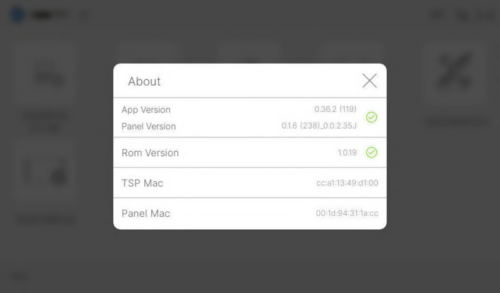
Panel information showing installed ROM and firmware versions
Cloud-based ROM updates for individual devices or batches
The ROM can be updated from the cloud on a single touchscreen or across an entire batch. Before starting, the system checks that the installed version is compatible with the update. This makes it possible to keep multiple touchscreens up to date without accessing each one individually.
In ROM management, a new column shows the source version to which each update applies, alongside the target version.
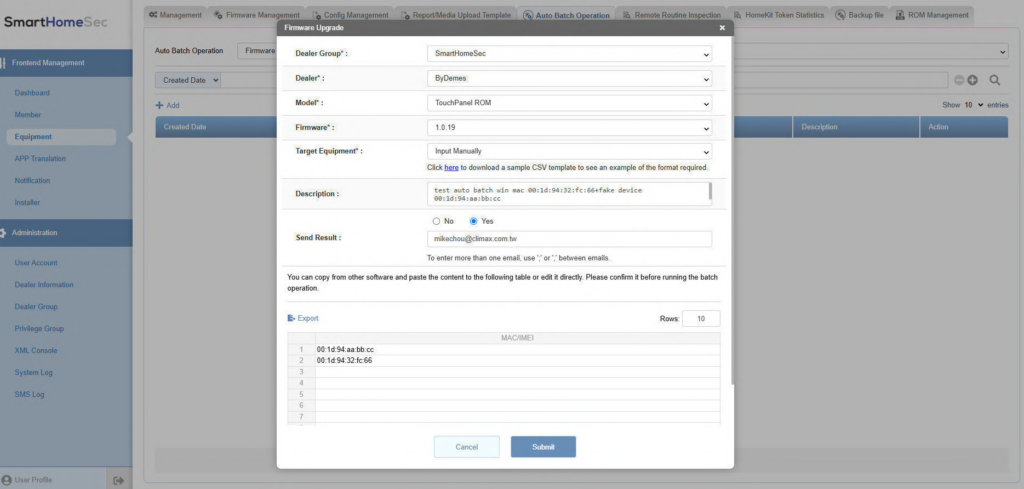
ROM update from the web portal for one device or an entire batch
Reporting template
The reporting template is integrated into the touchscreen itself and managed under Settings > Advanced Settings > Reports.
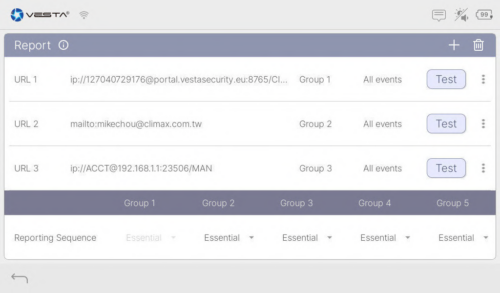
Reporting template in the touchscreen advanced settings
Z-Wave version and User 1 synchronisation
Panel information now shows the Z-Wave version instead of the ZB version. In addition, settings for User 1 in Area 1 are synchronised between the touchscreen and the cloud, ensuring that panel settings always match those displayed in the portal.
User and account permissions
New access permissions
The access privileges page provides more granular control over what each user can do in the app. Three new permissions have been added:
- SOS
- Siren
- Automation
These functions can therefore be restricted to users who actually need them.
Hide battery level
Device battery percentages can be hidden on a per-user basis. This simplifies the information presented to end users who do not need that level of detail.
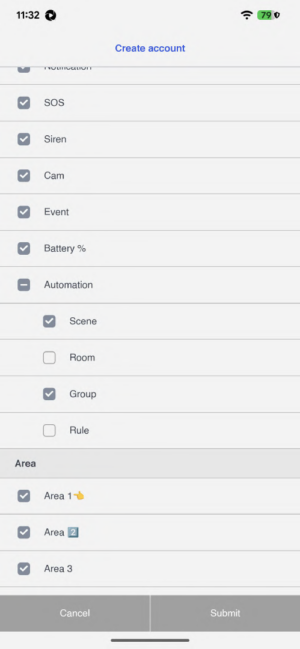
Access privileges in the app: SOS, siren, battery and automation
Delete account
Users and installers can delete their accounts from the User Information menu. Confirmation is required before the account and its associated data are deleted.
Keypads and remote controls
The KPT-52 keypad now supports additional remote configuration options:
- • Siren control.
- • Quick arming.
- • Enable or disable PIR.
- • 14 new languages.
The single-area mode options are now called Mode-First and PIN-First, clearly indicating which input is requested first. In addition, the SOS key is disabled by default.
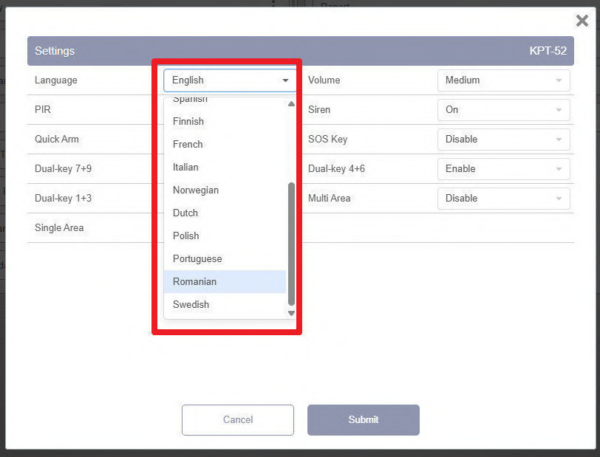
KPT-52 keypad remote configuration: language, volume and PIR settings
KPT-52: scheduled Do Not Disturb mode
Do Not Disturb mode can be scheduled using the keypad timer. During the configured period, the keypad does not emit notifications, allowing its behaviour to be tailored to each installation.
KPT-52: battery level
The battery level, including percentage and status, is displayed in the device list and keypad details. The image used to identify the KPT-52 has also been updated.
KPEX: two-key combinations and Bluetooth disarming
The KPEX keypad’s two-key combinations can be configured remotely:
- Panic: 1 + 2.
- Fire: 3 + 4.
- Medical assistance: 5 + 6.
Bluetooth disarming can also be configured by selecting the signal range (1 to 5) and timeout (1 to 9 minutes). If Bluetooth disarming is disabled, these two settings are locked.
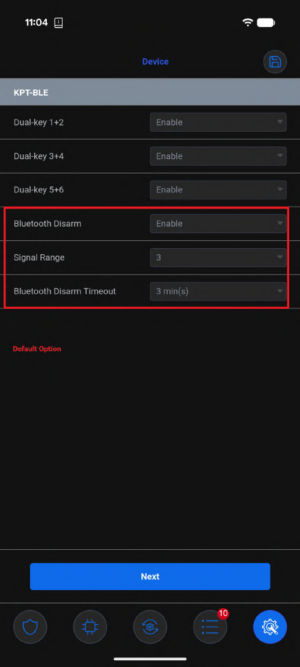
KPEX two-key combinations in remote configuration
RC-32 remote control: automatic identification and battery level
When paired, the RC-32 remote control is automatically identified as the white or black model, without requiring the user to press additional buttons. Each variant is displayed with its own icon. The remote control battery level can now also be checked.
Automation and other devices
WGT-1-COMBO in rules and automations
The WGT-1-COMBO can be used in rules and automations from the web portal, with the same functions as a card reader. For example, reading a card can trigger a mode change.
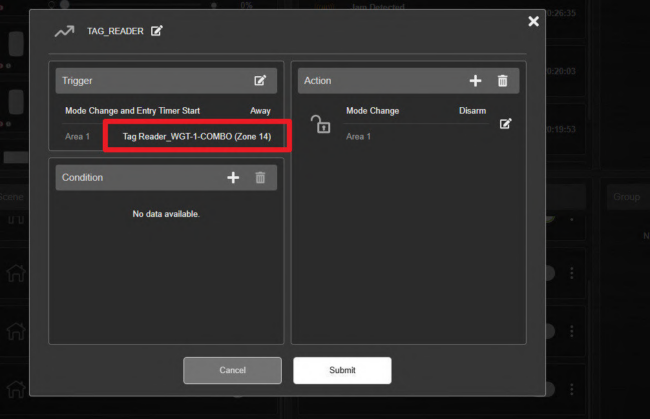
Rule using a card reader as the trigger and a mode change as the action
ESL-1 emergency light: alarm duration
The ESL-1 emergency light alarm duration can be configured remotely from 1 second to 30 minutes.
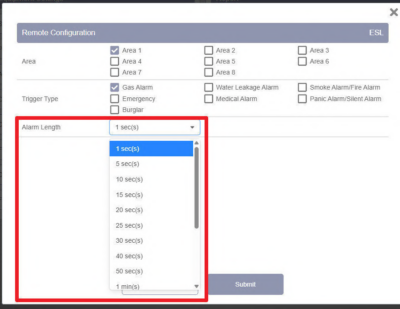
ESL-1 remote configuration with alarm duration by area
Yale DDL-C3 lock
After a Yale DDL-C3 lock is added, the system indicates that the lock is synchronising user codes and will be operational in approximately two minutes.
Arming and control panel configuration
Arming without entry delay
Allows the system to be fully or partially armed without applying the configured entry delay. This is a one-time setting: it only applies to that arming operation and is cleared upon disarming.
Silent arming
Allows the system to be armed without the usual audible notifications. Like the previous option, it can be used for full or part arming and is cleared upon disarming.
Device responses to arming and disarming
Each device’s settings page allows its responses to disarming, full arming and part arming to be configured.
Automatic answering of GSM calls
GSM settings include an Auto Answer option. When enabled, incoming calls are answered without pressing any buttons.
Control panel model and firmware version
The control panel details show the device model. In addition, the firmware update page displays the currently installed version beneath each module name (control panel, RF module, I/O module, etc.).
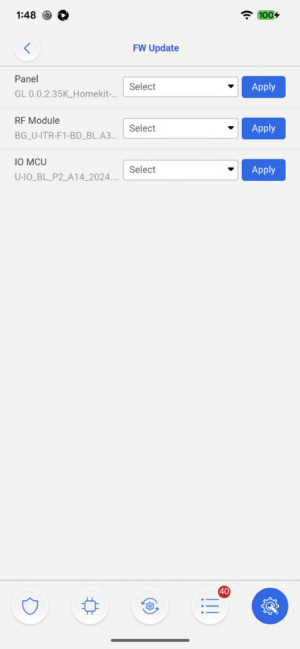
Firmware update page showing the current version of each module
RF module update notification
When an installer logs in and a newer RF module firmware version is available, the system displays a notification and allows the update to be started directly.
The notification also appears on the touchscreen, with options to install the new version or postpone it.
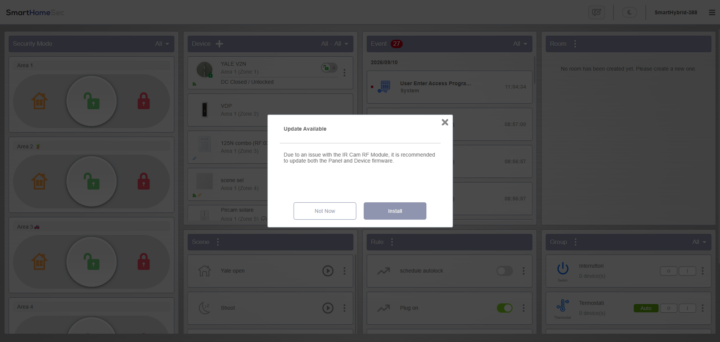
Notification of a new RF module firmware version when logging in as an installer
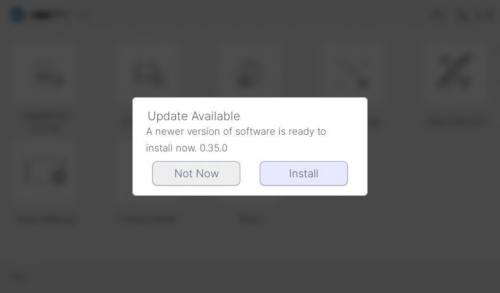
New firmware version notification on the panel touchscreen, with install and postpone options
New status: Device replacement required
A new fault type, Device replacement required, has been added and is visible both in the overall control panel status and in device information.
Other control panel improvements
- • In cross-area mode, the area prefix is automatically added when a bypass PIN is verified.
- • The master code is synchronised with User 1.
- • ESGW control panels include a setting to report power supply faults (AC mains failure).
Distributor web portal
Labels for organising installations
Control panels can be identified with customisable coloured labels, which can be used as filters in device lists and the dashboard. Distributors and sub-distributors have specific permissions to manage them.
In addition, the new Hide Suspended option allows suspended control panels to be excluded from the dashboard.
ROM management for distributor group managers
Distributor group managers can manage ROM directly from their profiles without relying on other users.
Event logs and traceability
Log filters and icons
The app event log now includes filters and displays an icon for each event type (for example, motion detection or IVS events). This makes it easier to find a specific event without reviewing the entire history.
Relay events: identifying their source
Relay events can be filtered by category, and the log indicates what triggered them:
- • User.
- • Installer.
- • Portal user.
- • Scene.
- • Rule.
Available for PSS, PSM, Dimmer, DIO50 and DIO52 relay modules. This makes it possible to identify not only what happened, but also which user or automation triggered it.
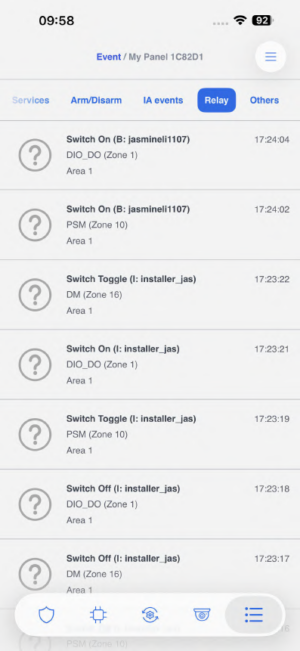
Log filtered by services, with relay events separated from arming and disarming
. Bug fixes
- • IP cameras: camera activation was previously only available with the Instant Alarm attribute and could not be configured as an entry/exit delay. It now works with all available zone attributes.
- • Large master accounts: video authentication failed on accounts with more than 100 IP cameras. The limit has been increased to 200.
- • ESGW control panels: the option to report AC power failures was missing.
- • PIN codes: retrieving lists of up to 500 codes could take as long as 17 seconds. Response time has been improved.
With version 2.35N, VESTA continues to move towards simpler, more centralised installation management, with more remotely accessible features and increasingly close integration between security, video, home automation and connected devices.
